PDF Conversion | How To, Best Practices & Tools
PDF conversion makes your files more flexible and practical across different tools and workflows. Whether you need to edit text, extract data, share content more easily, or improve accessibility, converting PDFs to other file formats allows you to use your document in different ways.
This guide explains what PDFs are, when you might need PDF conversion, best practices to follow for optimal results, and how to find the best PDF converter for you among the various solutions out there—like QuillBot’s free online PDF converter.
Table of contents
What is a PDF?
PDF is a versatile file format that makes sure documents look the same across different devices, operating systems, and software (PDF means “Portable Document Format”). PDFs preserve fonts, images, graphics, and layouts; what you see on your screen is exactly what someone else will see or what will come out of a printer.
Due to this consistency, PDF has become the standard file format for forms, reports, official documents, and eBooks. PDFs can also be digitally signed and encrypted via password protection, making the file format popular for sharing sensitive information as well.
Other document file formats
While PDFs are excellent for preserving layout and formatting, they’re not always the most practical option for every task. Many other document file formats are designed specifically for editing, collaboration, data processing, or web publishing. The below table summarizes some of the other most common document file formats and what each is best for.
| Extension | Format name | Primary use | Key characteristics |
| DOC, DOCX | Microsoft Word Document | Writing and editing text documents | Supports rich formatting, comments, track changes, and real-time collaboration |
| XLS, XLSX | Microsoft Excel Spreadsheet | Data organization and analysis | Allows formulas, charts, tables, and large datasets |
| PPT, PPTX | Microsoft PowerPoint Presentation | Presentations and slideshows | Supports multimedia, animations, and visual layouts |
| TXT | Plain Text File | Simple text storage | No formatting, very lightweight, universally compatible |
| RTF | Rich Text Format | Basic formatted documents | Supports fonts, bold, italics, and simple layouts |
| HTML | HyperText Markup Language | Web publishing | Displays content in browsers and supports links, images, and structured content |
| ODT | OpenDocument text | Word processing (open standard) | Open-source alternative to DOCX |
| ODS | OpenDocument spreadsheet | Spreadsheets (open standard) | Open-source alternative to XLSX |
| ODP | OpenDocument presentation | Presentations (open standard) | Open-source alternative to PPTX |
The older formats (DOC, XLS, PPT) are binary and considered legacy, while the newer formats (DOCX, XLSX, PPTX) are part of the Office Open XML standard. The newer formats are smaller in size, more secure, and easier to recover if a file becomes corrupted.
What is a PDF converter?
A PDF converter is a tool that lets you transform files into other file formats. PDF converters are often used to convert PDFs to editable formats (e.g., DOCX), making it easier to update content, reuse information, and integrate documents into your everyday work.
A few example use cases of a PDF converter are:
- Converting reports from PDF to Word so teams can edit and collaborate
- Extracting tables and charts from academic PDFs into Excel for data analysis
- Exporting PDF flyers to images (JPG/PNG) for social media or website use
- Converting PDFs into editable PowerPoint slides for client pitches
- Converting eBooks into accessible formats for students with disabilities
Where to find the best PDF converter
The “best” PDF converter depends on your needs and circumstances. Some people prioritize speed and convenience, while others need advanced features or offline access. Understanding the different types of PDF converters can help you choose the right solution for your situation.
| Type | Best for | Pros | Cons |
| Online | Quick conversions from any device | No installation required; works in any browser; often free | Requires internet connection; may have file size limits; potential privacy concerns |
| Desktop | Frequent or large-scale conversions; conversion of sensitive documents | Works offline; usually has more features; better privacy | Requires installation; usually not free; requires updates and virus protection |
| Mobile | On-the-go conversions | Convenient; portable; integrates with cloud storage | Smaller screens can make editing tricky; may have fewer advanced features |
Online PDF converters
Online PDF converters are ideal for quick, one-off conversions. They work directly in your browser, so you don’t need to install any software, and many are free to use. These tools are perfect for small files or casual conversions, but keep in mind that uploading sensitive documents may pose privacy risks.
Desktop software
Desktop PDF software is designed for frequent use, large files, or sensitive documents. Installed on your computer, these programs offer advanced features like batch conversion, Optical Character Recognition (OCR) for scanned PDFs, editing tools, and better security since your files remain offline. They usually require a purchase or subscription but are ideal for professionals who need frequent, reliable, high-quality conversions.
Mobile apps
Mobile PDF apps let you convert documents directly from your smartphone or tablet, making them perfect for work while traveling or away from your computer. They often integrate with cloud storage services, so you can access files from anywhere. While convenient, mobile apps may have fewer advanced editing options and can be less comfortable for complex documents, though cloud storage may raise security concerns.
How to convert PDFs
Converting PDFs doesn’t have to be complicated. While the exact steps may vary depending on the converter you use, most tools follow a similar process that works across online, desktop, and mobile solutions.
The basic steps for PDF conversion are:
- Open the PDF converter and upload the file you want to convert.
- Choose the target file format (e.g., DOC or XLSX).
- Adjust settings if needed (e.g., select specific pages, apply OCR for scans, or customize output).
- Convert the file. This process may take anywhere from a few seconds to a few minutes, depending on the file size and type.
- Download or save the converted file to your computer, cloud, or mobile device.
Following these general steps ensures a smooth, reliable conversion no matter which type of PDF converter you’re using.
How to use QuillBot’s PDF converter
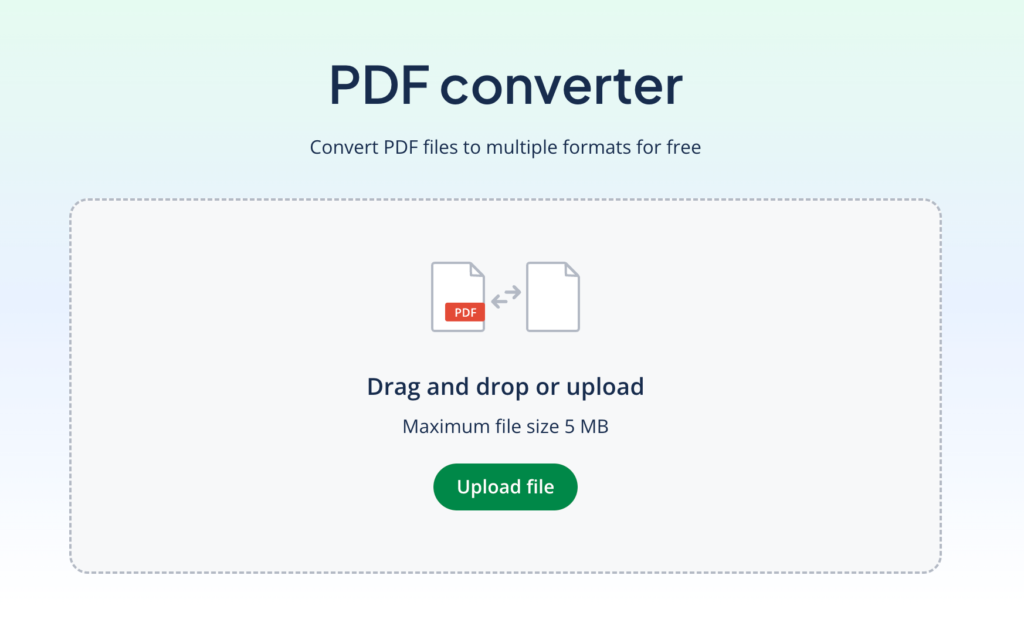
QuillBot’s free PDF converter is designed to make the process simple and fast. Here’s how to use it:
1. Upload your document
Drag and drop your PDquillbot” into the converter or select it from your device.
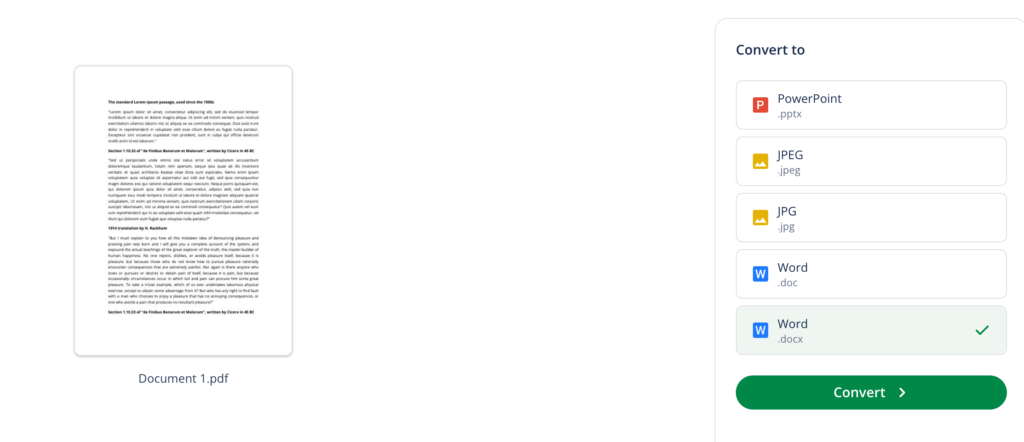
2. Choose your target file format
Pick the format you want to convert your PDF into. You can choose between Word, PowerPoint, or JPEG. If you want to convert PDF to Word, you can choose between DOCX or DOC, but DOCX is now the recommended format to use.
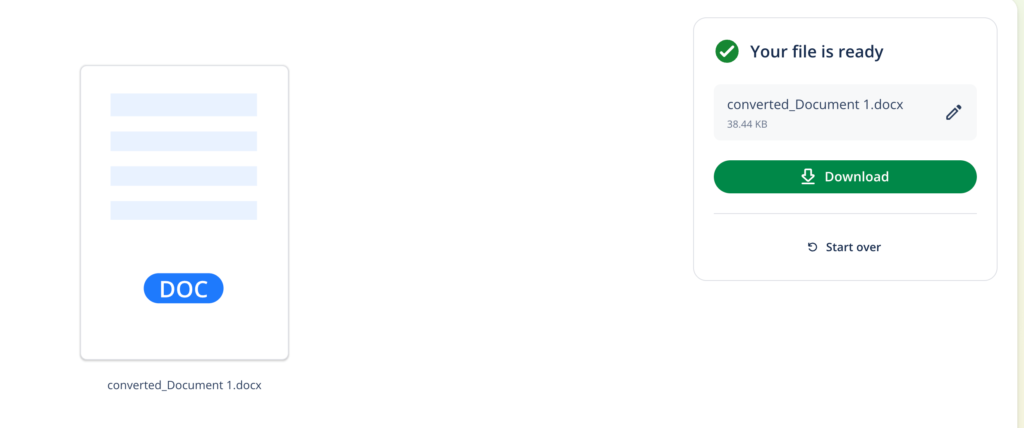
3. Download the converted file
If you want, you can rename your converted file. Then download it to your device.
Best practices for PDF conversion
To get the best results from any PDF converter, it’s helpful to follow a few best practices before and after conversion.
- Use a file naming system. Use clear, descriptive file names so you can easily find and organize your converted documents. Include the document type, date, or version if needed. Avoid using special characters (e.g., #, &, *) for maximum compatibility.
- Understand file formats. Know which formats suit your purpose. If you’re not sure, there is a table above that explains the key differences between document file formats.
- Check requirements and restrictions. Some converters have file size limits, page restrictions, or formatting limitations. Reviewing these in advance can prevent errors, incomplete conversions, and user frustration.
- Check the source document quality. Make sure the PDF isn’t corrupted or overly compressed. High-quality PDFs convert more accurately, especially when images, charts, or tables are involved.
- Keep a backup of the original PDF. Always save a copy of the original file in case the conversion introduces errors or you need to reconvert later using different settings.
- Use OCR for scanned PDFs. If your PDF is scanned or image-based, use a converter with Optical Character Recognition (OCR) to ensure the text becomes editable and searchable.
- Optimize for accessibility. When converting PDFs for sharing, consider accessibility. For example, export as a Word file to allow screen readers to properly interpret the content.
- Batch convert for multiple files. If you have several PDFs to convert, look for tools that support batch processing to save time and reduce repetitive work
- Preserve metadata. Check whether the converter retains important metadata (e.g., author, creation date, title) if you need it for archiving, legal, or academic purposes.
- Use cloud integration mindfully. If converting files via a cloud service, ensure your privacy and security needs are met. Avoid uploading sensitive files to online tools that don’t offer encryption.
- Review converted files carefully. Always double-check the converted document for formatting errors, missing images, or misplaced tables. Minor corrections are often needed.
- scan01.pdf
- contract.docx
- 0182372.pdf
- 2026 01 23 Contract
- EditableInvoiceTemplate
- 2026-student-handbook
Other PDF tools for better productivity
In addition to converting PDFs, there are several other tools that can help you work more efficiently with PDF documents:
- PDF merger: Merge PDFs into one with QuillBot’s merge PDF tool. This tool is helpful when combining reports, chapters, forms, and documents.
- PDF splitter: Split PDF pages into smaller files to extract only the information you need. Try QuillBot’s split PDF tool for a free, online option.
- PDF editor: An editor allows you to add text to a PDF, highlight a PDF, or annotate your document. QuillBot’s free, online PDF editor lets you edit your PDF without even creating an account.
- Reverse converters: Sometimes, instead of converting from PDF, you need to convert to PDF. QuillBot’s PDF converter tools—like the Word to PDF converter—let you convert from Word, Excel, and other file formats to PDF.
Using these tools alongside a PDF converter gives you full control over your documents and saves you time and energy on your work, school, or personal projects.
Frequently asked questions about how to convert PDF to Word
- What is a linearized PDF?
-
A linearized PDF (aka a fast web view PDF) is a type of PDF document that has been optimized for the web. Unlike regular PDFs that must be fully downloaded before viewing, a linearized PDF allows a web browser or PDF viewer to start displaying the first page almost immediately, even while the rest of the file is still downloading.
Linearized PDFs are common for eBooks, journal articles, and government reports.
When you need to make notes on a linearized PDF, you can usually download it so that you can open it in a PDF editor, such as QuillBot’s free online PDF editor. Or, put the download through a PDF converter and edit it as a Word document.
- How do you convert a PDF to a JPEG on an iPhone?
-
To convert a PDF to a JPEG on an iphone, follow these steps:
- Open QuillBot’s free online PDF converter.
- Click “upload PDF.”
- A list of PDFs downloaded to your iPhone will appear.
- Choose the PDF you want to convert.
- Select “convert to image.”
- Save the JPEG to your iPhone.
After you save the JPEG, you can easily add it to a social media post, LinkedIn summary, professional email, and more!
- Will the formatting stay the same when I convert PDF to PPT?
-
QuillBot’s online PDF converter preserves the original formatting, including layout, images, structure, and font size. The PPT will have a separate slide for each page in the PDF.
This ensures that your presentation looks as close to the original PDF as possible, while still being fully editable in PowerPoint.
- How do you convert PDF to JPG for free?
-
You can convert PDF to JPEG for free by using QuillBot’s free online PDF converter. The process only takes three easy steps.
- Click “upload PDF.”
- Choose the PDF you want to convert.
- Select “convert to image.”
After the conversion is complete, you can share the JPEG in an email, social media post, message, etc.
- How can I convert a PDF to a PowerPoint presentation for free?
-
You can easily convert a PDF to a PowerPoint presentation using QuillBot’s free PDF converter. Simply upload your PDF, choose PowerPoint as the output format, and download your editable presentation. No account or software installation is required.
And, if you need to convert a PPT to PDF instead, use QuillBot’s free PPT to PDF converter.
Cite this Quillbot article
We encourage the use of reliable sources in all types of writing. You can copy and paste the citation or click the "Cite this article" button to automatically add it to our free Citation Generator.
Santoro, K. (2026, February 02). PDF Conversion | How To, Best Practices & Tools. Quillbot. Retrieved February 4, 2026, from https://quillbot.com/blog/pdf-tools/pdf-conversion/