Using an AI Storyboard Generator | Tips & Free Tools
Storyboards are an essential tool to create a visual bridge between your raw script and the finished visual product. Whether you’re a filmmaker, marketer, or content creator, a storyboard acts as your blueprint. A great one can reduce confusion and enhance collaboration as you tackle your next project.
If you’re not a graphic designer or are tight on time or money, tools like QuillBot’s AI storyboard generator are a great way to streamline the process.
How to create a storyboard
Not sure where to get started? Never fear! Follow these three simple steps to build out a great storyboard.
1. Break down your script
No matter how action-packed your script is, you likely won’t need a separate shot for every line of dialogue. Think about the key moments in your scene and what’s most important for your audience to know. Are you trying to establish a new setting, do you want to document a change in emotion, or is new information being revealed that changes the course of your story? Choose the most important elements of the scene for your storyboard.
2. Develop a shot list
Once you’ve identified the most important shots in your scene, it’s time to determine the best framing for each. When choosing your shots, think about whether you want to focus on the surroundings, interactions between characters, or subtle emotional reactions.
Some shot options to consider:
- A long shot (wide shot): This film technique shows a “zoomed out” view of the scene. It can be useful for establishing a new setting or providing environmental context, as it shows both your characters and their surroundings.
- A medium shot: A medium shot (or a mid shot) shows characters from the waist up. This type of shot not only provides the audience with a good view of the character’s face but also lets them observe body language, so it’s great for scenes with important dialog or character interactions.
- A close-up shot: In a close-up shot, the subject fills the frame, allowing the audience to get “up close and personal” with their expressions and emotions.
3. Sketch and annotate
Create a rough visual representation for each shot. Include notes on characters, movement, and camera angles if you already have an idea of what you want. You can also add in key dialogue or sound cues. This step is a great opportunity to lean on the capabilities of an AI tool that can do some of the heavy lifting for you.
Using an AI storyboard generator
Traditionally, creating a storyboard would require hours of manual sketching or digital design. However, AI tools like QuillBot’s AI storyboard generator can speed up the process, saving your time and creative energy.
QuillBot’s AI storyboard generator has a simple interface design to make things easy for you. Simply describe what you’re looking for in the prompt box and choose from one of the preset styles (or keep this set to “Auto” if you want the tool to focus on any style notes you’ve included in your prompt). You also have the option to choose an aspect ratio for the output. When you’re done, click “Generate a storyboard” to get your results!
The user interface of QuillBot’s AI storyboard generator

The tool will always generate two options for you to choose from. Ideally, you’ve crafted the perfect prompt that gives you exactly what you need on your first try, but if this isn’t the case, you’ll have the option to revise your prompt and regenerate images until you’re satisfied with the output.
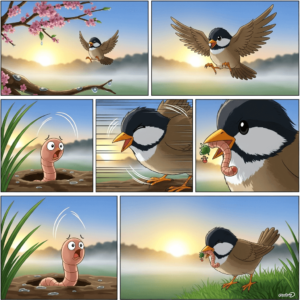
An example of a storyboard from the prompt “the early bird gets the worm”
Frequently asked questions about AI storyboard generators
- What is an AI storyboard generator?
-
A storyboard is a great way to showcase your idea and explain it to others. If you don’t have the time or budget to design your own, tools like QuillBot’s AI storyboard generator are a great option.
Simply describe your story or scene, choose your style, and generate a storyboard with the click of a button.
- How do I get started with AI story writing tools?
-
Pick a free AI tool like QuillBot’s AI Chat and decide what specific writing challenge you need help with. Based on this, give a concrete prompt, like “I need three ways my character could react to bad news” rather than “help me write better.”
You could also ask AI to help you brainstorm, like asking it for writing prompts or dialogue prompts to spark your creativity.
As you get comfortable, experiment with different prompts to see what kind of responses are most helpful for your writing process.
- What are common mistakes to avoid when using AI for story writing?
-
Common mistakes when using AI for story writing include:
- Copying AI texts word for word and losing your unique voice
- Overrelying on AI content without fact-checking it
- Not considering copyright issues, plagiarism concerns, or your publication’s guidelines about AI-assisted content
- Using generic prompts like “write a story set during Prohibition” instead of specific requests like “help me brainstorm three possible endings for this conflict”
To ensure your writing maintains originality and quality, QuillBot’s Paraphraser can help refine AI-generated suggestions. It allows you to rephrase and tailor content to match your unique voice while improving clarity and flow.
In addition, running an online plagiarism checker helps ensure AI-assisted content doesn’t intentionally mirror existing sources and aligns with publication standards.
Cite this Quillbot article
We encourage the use of reliable sources in all types of writing. You can copy and paste the citation or click the "Cite this article" button to automatically add it to our free Citation Generator.
QuillBot. (2026, February 03). Using an AI Storyboard Generator | Tips & Free Tools. Quillbot. Retrieved February 4, 2026, from https://quillbot.com/blog/image-tools/using-an-ai-storyboard-generator/